
Overview
In HospiceWorks, Symptom Follow-Up Visits (SFVs) are used to support HOPE symptom follow-up requirements. HospiceWorks lets you manage SFVs in three clinician-friendly ways, and ensures SFV documentation can flow back into the HOPE assessment when completed and signed.
Option A: SFV Triggered Automatically from the HOPE Form (Recommended)
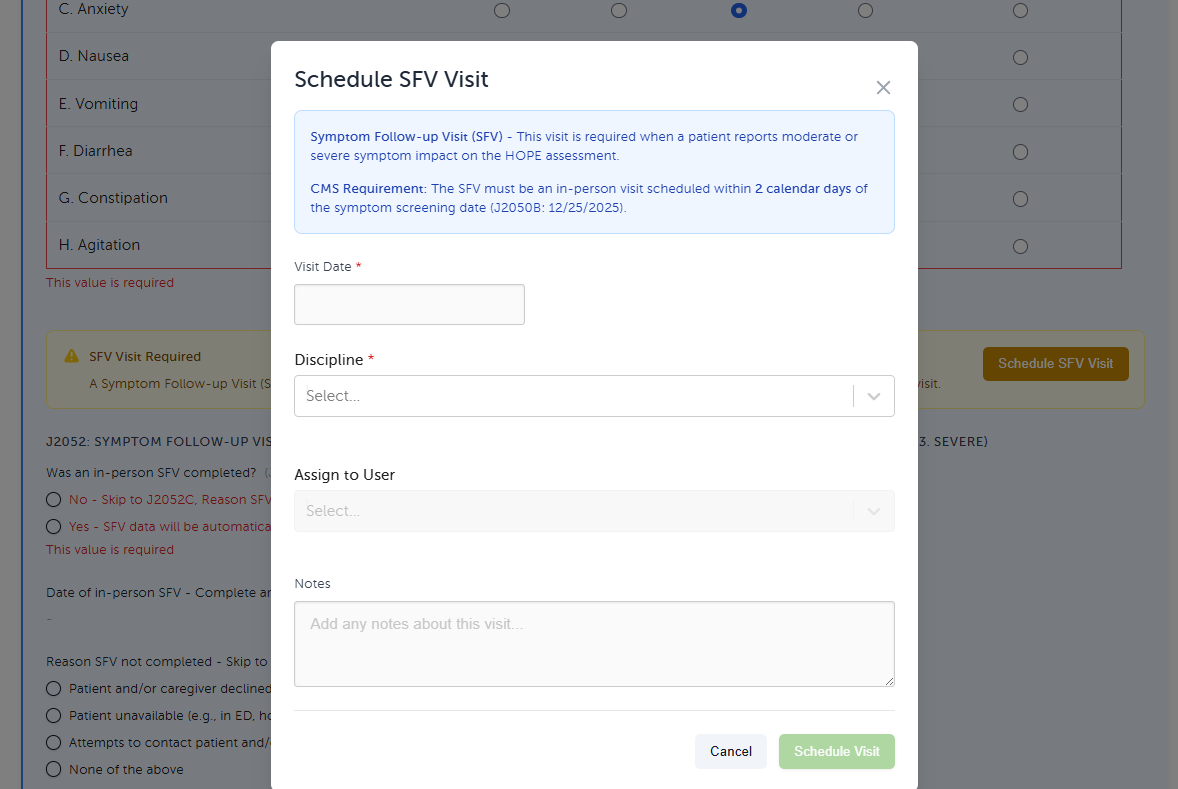
When you document HOPE items that require a follow-up, HospiceWorks automatically triggers the SFV workflow.
How it works
Open the patient’s HOPE assessment.
Complete the relevant HOPE section(s).
When an SFV is required, HospiceWorks will prompt the SFV visit automatically.
In the HOPE form, you’ll see the option to schedule the SFV within 2 days.
Schedule the SFV and complete the follow-up documentation as prompted.
Best for: Staying fully aligned with HOPE timing and ensuring SFV scheduling happens immediately when required.
Option B: Add + Document an SFV from the Nurse Visit Note (NVN)
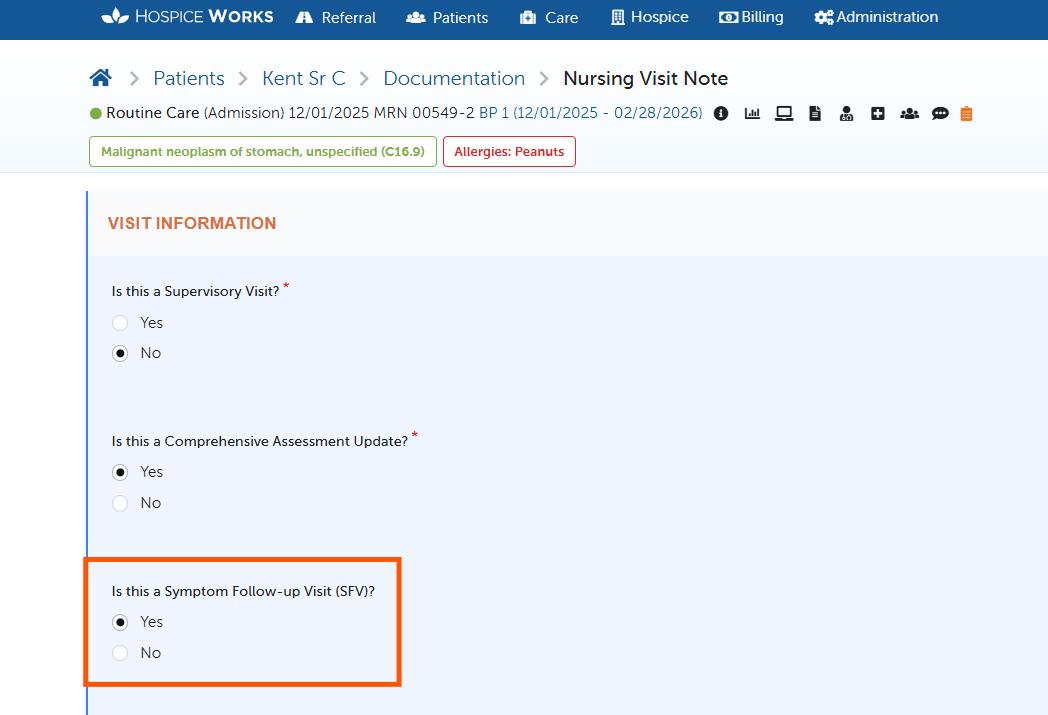
You can create an SFV directly within the Nurse Visit Note, as long as it’s documented as a follow-up visit (not combined with an assessment visit).
Steps
Go to the Patient Dashboard.
Click Care Management.
Select Create New Documentation.
From the dropdown, choose Nurse Visit Note (or the appropriate visit note, if your setup differs).
In the visit note, set:
“Is this a Symptom Follow-Up Visit?” → Yes
Complete the SFV section in the visit note.
Important: SFV documentation must be separate from the assessment visit.
Sign the Nurse Visit Note.
Once signed, the SFV documentation will automatically flow back into the HOPE assessment form.
Open the HOPE assessment, verify the SFV has populated, then complete and electronically sign the HOPE form.
Best for: Clinicians documenting in the visit note first, then finalizing HOPE afterward.
Option C: Schedule an SFV from the Patient Calendar
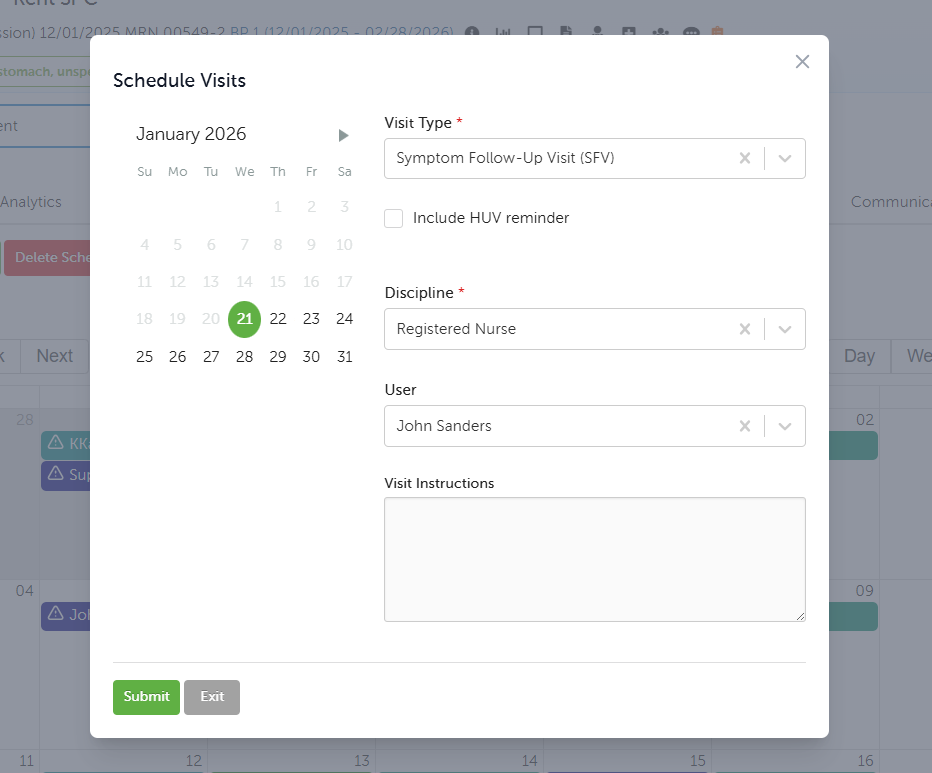
If you prefer to schedule visits first, you can create the SFV directly from the patient’s calendar.
Steps
Open the Patient Dashboard.
Go to the Calendar tab.
Schedule a visit and select:
Visit Type: SFV
Complete and sign the Nurse Visit Note (SFV).
Upon signing, the SFV documentation will automatically flow back into the HOPE assessment form.
Open the HOPE assessment, verify the SFV details, then complete and sign the HOPE form.
Best for: Teams that schedule all visits from the calendar before documentation is completed.
Key Rules to Remember
SFV documentation must be documented as an SFV visit (not a generic visit).
SFV must be separate from an assessment visit (do not combine).
Signing the SFV Nurse Visit Note triggers the flow back into HOPE.
Always review the HOPE form after the SFV is signed, then electronically sign HOPE.
Quick FAQs
Q: Do I have to schedule the SFV from HOPE?
No. You can schedule it from HOPE, the Nurse Visit Note, or the Patient Calendar.
Q: When does the SFV flow into HOPE?
After the SFV Nurse Visit Note is signed, the SFV documentation flows back into the HOPE assessment.
Q: Can I document the SFV during the same visit note as the assessment?
No. The SFV section must be separate from the assessment visit.
Q: What’s the safest workflow to stay compliant with timing?
Option A (HOPE-triggered SFV) is best because it prompts scheduling within the HOPE timeframe and reduces missed follow-ups.
Q: What do I sign first—HOPE or the SFV Nurse Visit Note?
If you’re using Options B or C, you typically sign the SFV Nurse Visit Note first, then complete and sign the HOPE assessment after the SFV flows back in.