
Overview
HospiceWorks uses two different workflows to update a patient’s address, depending on whether the patient lives:
- At home
- In a facility
Use the correct workflow so the patient’s location is properly reflected throughout the medical record.
Workflow 1: Correcting a Patient’s Home Address
Use this workflow when the patient continues to reside at home and the home address needs to be corrected.
Steps
- Open the patient’s chart.
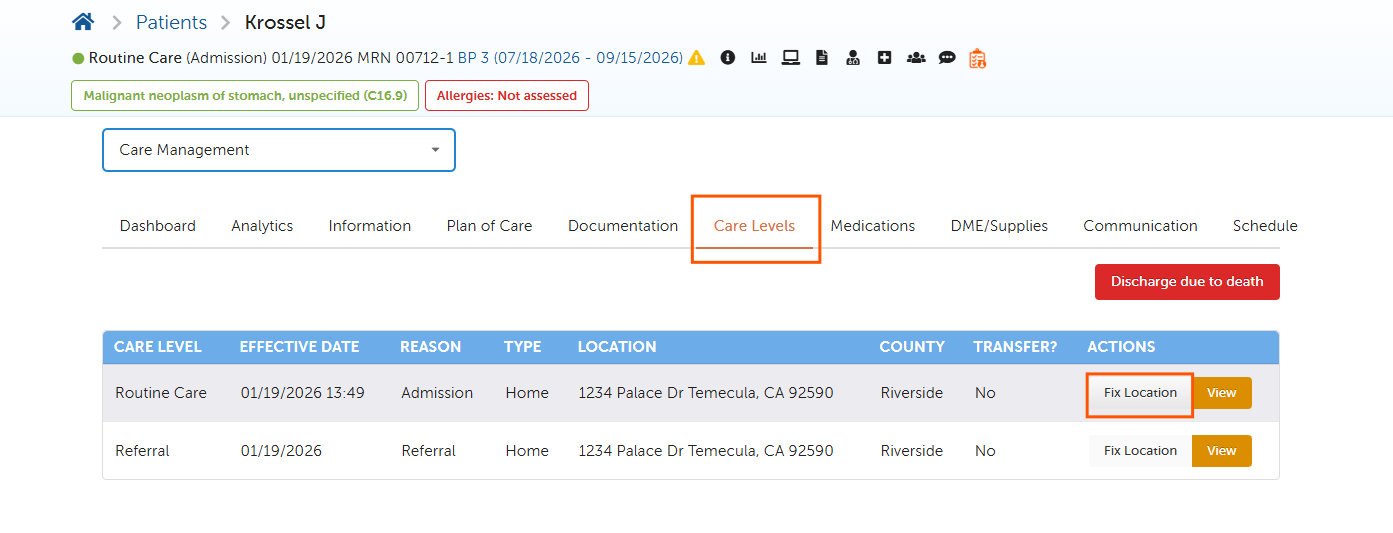
- From the Patient Dashboard, select Care Levels.
- Locate the patient’s current care-level record.
- Under Actions, click Fix Location.
- Select Home as the location type, if prompted.
- Enter or correct the patient’s:
- Street address
- City
- State
- ZIP code
- County
- Review the information for accuracy.
- Save or submit the correction.
Important
Use Fix Location for corrections to an existing home address. A physician order is generally not needed when correcting address information and the patient has not moved to a different care setting.
Workflow 2: Changing or Correcting a Facility Address
Facility location changes must be completed through a Physician Order using the Change Care Level or Location section.
Before You Begin
The facility must already be available and enabled in:
Administration → Care Providers → Facility
The facility list in the Physician Order pulls directly from the facilities configured in Administration.
If the facility does not appear in the selection list, an authorized administrator must first add or enable it.
Steps
- Open the patient’s chart.
- Create a new Physician Order.
- Scroll to the bottom of the order.
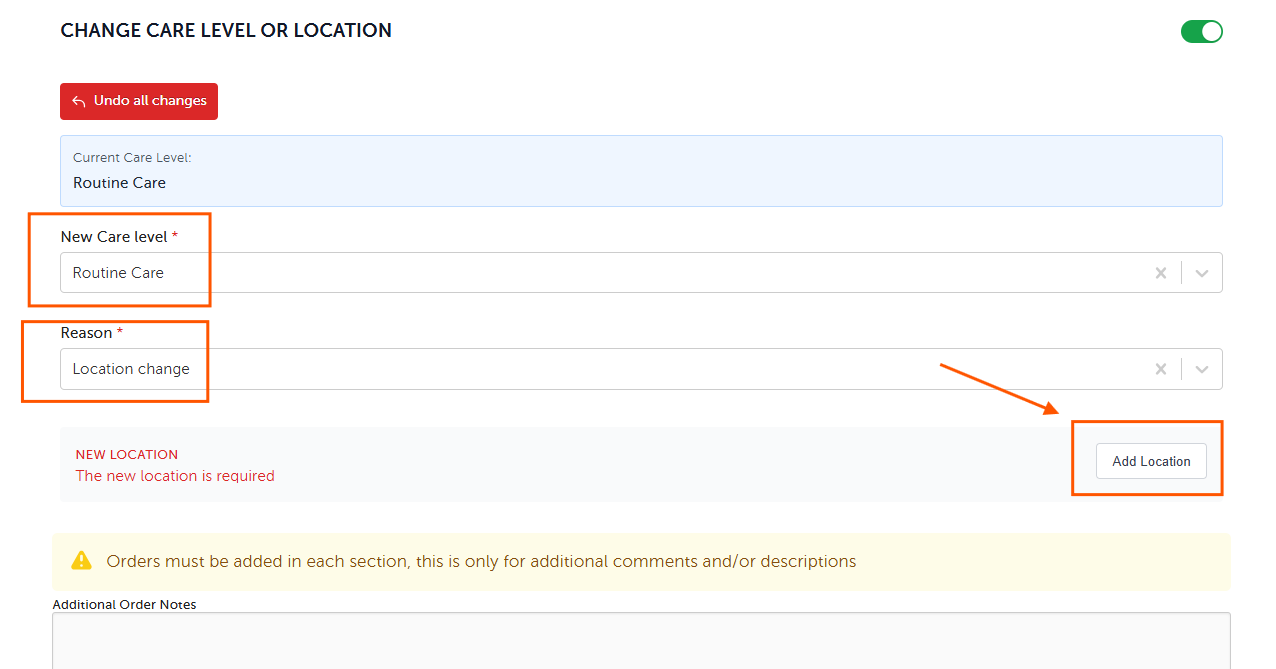
- Select the Change Care Level or Location tab.
- Confirm or select the appropriate New Care Level.
- When only the location is changing, select the patient’s existing care level.
- Example: Routine Care
- Under Reason, select Location Change.
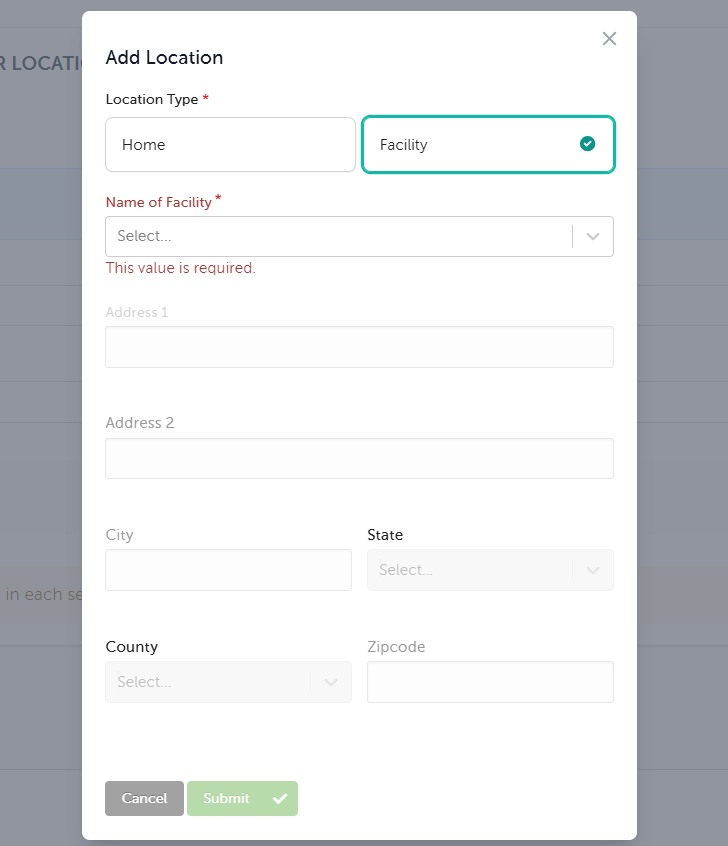
- Click Add Location.
- Select Facility as the location type.
- Under Name of Facility, select the correct facility from the list.
- Verify the facility address and other location information.
- Complete any other required sections of the Physician Order.
- Submit the order through the standard physician-order workflow.
Facility Not Listed
When the needed facility does not appear under Name of Facility:
- Go to Administration.
- Open Care Providers.
- Select Facility.
- Add the facility or confirm that the existing facility is enabled.
- Return to the patient’s Physician Order.
- Reopen Add Location and select the facility.
Which Workflow Should I Use?
| Patient situation | Correct workflow |
|---|---|
| The patient remains at home, but the address contains an error | Care Levels → Fix Location |
| The patient moved to a different home address | Care Levels → Fix Location |
| The patient is moving from home to a facility | Physician Order → Change Care Level or Location |
| The patient is moving from one facility to another | Physician Order → Change Care Level or Location |
| The facility name or address is not available for selection | Update Administration → Care Providers → Facility first |
Expected Result
After the update is completed, the corrected location should display in the patient’s Care Levels history and be available to the clinical team in the patient record.